
Please note:
There are two types of monitoring checks in FoodDocs:
-
Detailed Tasks — include specific inputs like temperatures, products, dates, etc.
-
Checklists — simple lists of items your team can mark as done.
Please note!
- This feature is available only on a desktop. It means you cannot set up your monitoring tasks in our app solution.
- App the best solution for your team to monitor daily tasks. Download it for your Apple iOS or Android devices and on your tablet.
In FoodDocs, you can set up any detailed tasks and complete them in the mobile app. The most used are delivery control, temperature checks, traceability tasks, calibration, cooking/cooling/hot holding and quality controls.
Step-by-Step Checklist Setup
1. Log into FoodDocs
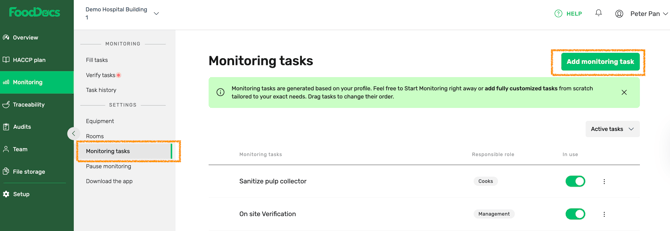
Go to your desktop app: Monitoring > Settings > Monitoring tasks.
2. Add a New Task
-
Click Add monitoring task (top right).
-
Enter a name for the task.
- Choose a Detailed task.
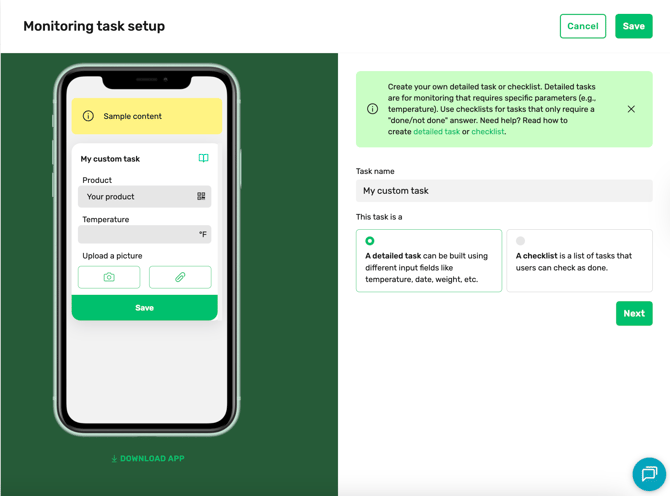
Please note: You can only choose the task type once — if you need a different type later, create a new task.
3. Relating Your Checklist to Rooms or Equipment
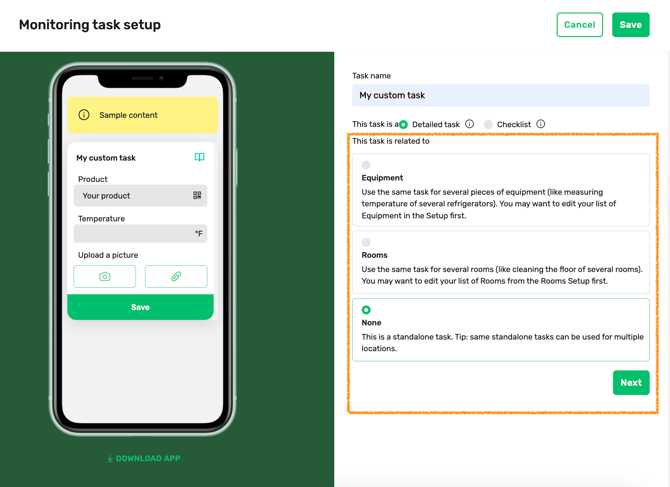
Tasks can be linked to your business structure for better organization:
| Option | What It Means |
| Equipment | Task applies to a specific item (e.g., fryer or fridge). |
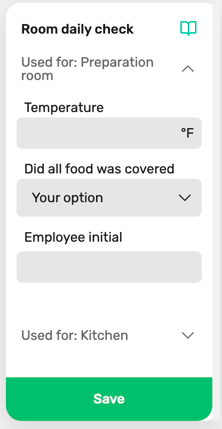
| Rooms | Task applies to a specific room or area (e.g., kitchen). |
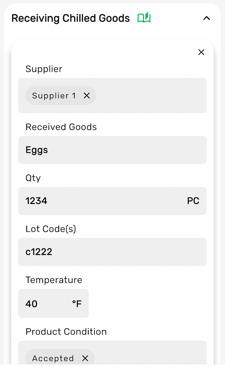
| None |
Company-wide task, not tied to any room or equipment OR Location-wide task, not tied to any rooms or equipment (see examples below) |
TIP: Linking checklists to rooms/equipment helps your team filter and complete the right tasks faster.
- On the left side of the preview window, you can see how the task will look in the mobile app
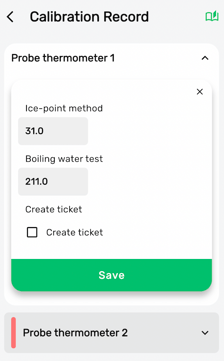
Related to the Equipment example:
In this example, only one field is required (temperature), which will visually appear in the first view.
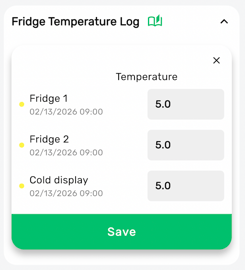
In this example, multiple fields are required (temperatures), a second view will be opened, and all fields will be under each other.
Related to the Rooms example:
Related to the None example:
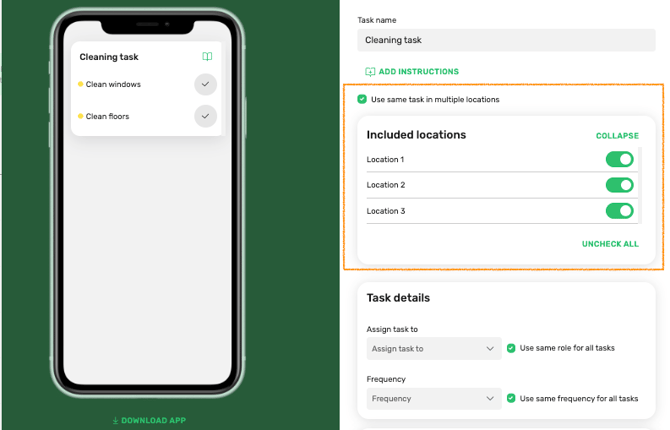
4. Relating Your Task to Locations
NB! Location selection is available only for Tasks with the relation type None
-
Choose which locations this specific task is applicable to.
5. Task details: Set Frequency & Assign Roles
-
Choose how often tasks should be completed (e.g., daily, weekly).
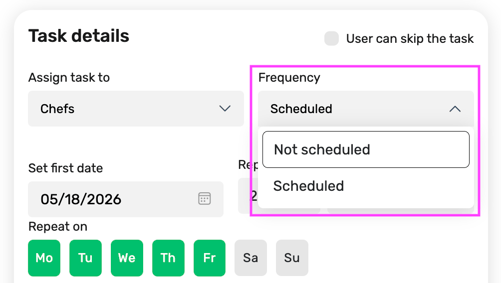
- Specify the frequency of the checklist and assign it to a team role.
- Assign a team role — only users with that role will see this checklist in their mobile app.
Please note:
- For irregular tasks that you register once in a while, choose 'Not scheduled' They will be marked grey in your app.
-
Only team members with the same responsible role will see the task in their FoodDocs mobile app.
-
Companywide tasks require a companywide role.
6. Task fields: Add task Items
- Click ADD FIELD and start building up your monitoring task by adding all the needed fields one-by-one.
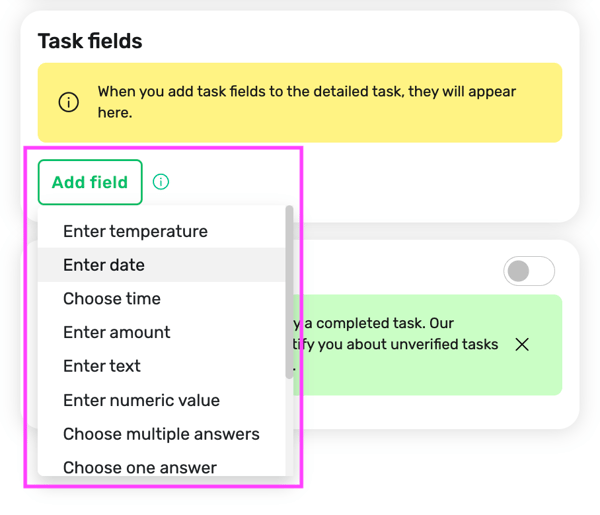
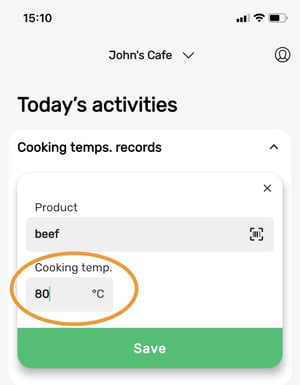
- Enter temperature: create a title (e.g., Cooking temp.) and specify the temperature range (e.g., Minimum 75°C/ 145°F). App view:
- Enter temperature: create a title (e.g., Cooking temp.) and specify the temperature range (e.g., Minimum 75°C/ 145°F). App view:
-
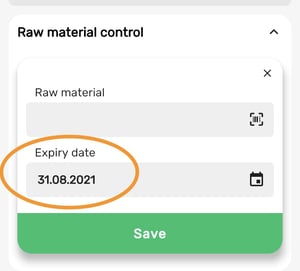
- Enter a date: create a title (e.g., Expiry date or Order pickup date). App view:
-
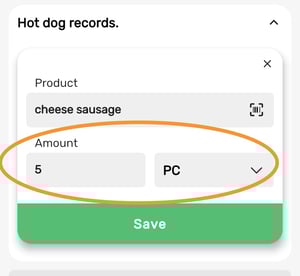
- Enter amount: create a title (e.g., Amount). App view:
-
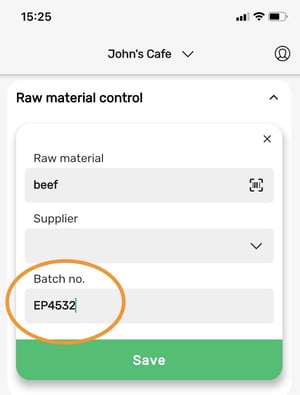
- Enter text: create a title (e.g., Batch no.). App view:
-
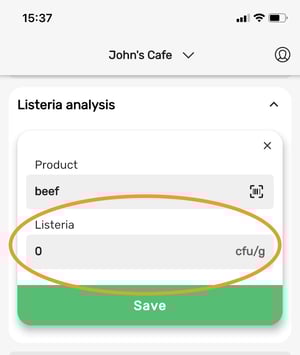
- Enter value: create a title (e.g., Listeria analysis) and specify the unit. App view:
-
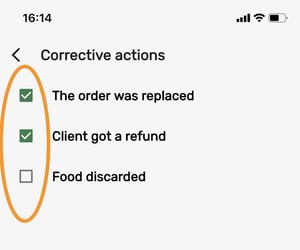
- Choose multiple answers: create a title (e.g., Corrective actions) and give options. App view:
-
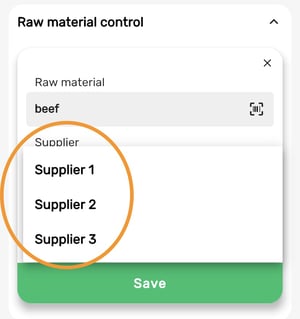
- Choose one answer: create a title (e.g., Supplier) and give options. App view:
-
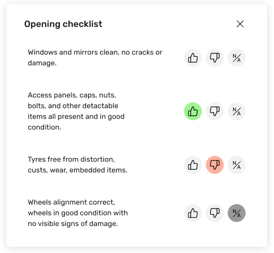
- Choose Yes/No/NA: Quickly mark tasks as done, not done, or not applicable with the new Yes/No/NA field.
-
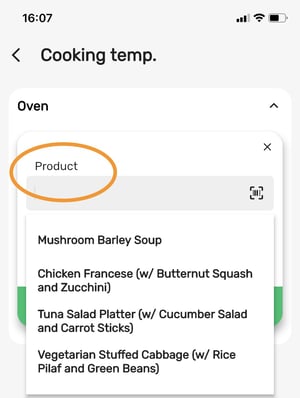
- Choose a product: create a title (e.g., Product). If you have added products/ recipes to Production, they will be shown in the dropdown list in your app. App view:
-
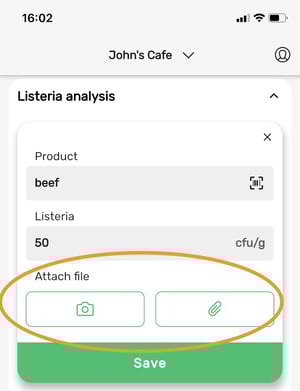
- Attach file: create a title (e.g., Attach file). App view:
-
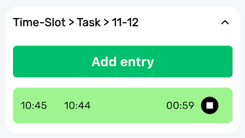
- Timer: allows adding a reminder to a specific task. Once the countdown is over, the user will be notified.
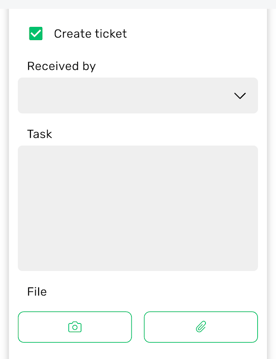
- Create ticket: allows the creation of tickets/one-off tasks for specific team members
- Timer: allows adding a reminder to a specific task. Once the countdown is over, the user will be notified.
-
When you’re finished adding tasks to the checklist, click Save.
6. Optional: Enable Verification
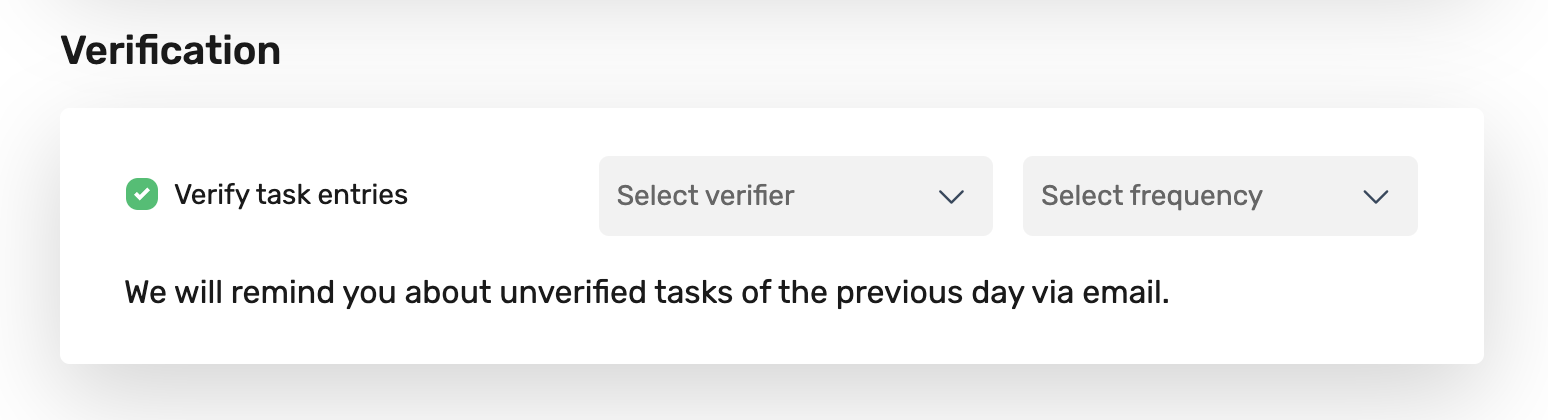
Turn on Verification if you want supervisors or managers to approve task completion. This adds an extra layer of quality control and helps ensure compliance.
- Activate Verification if you want to verify all the monitoring made by employees.
- NB! Companywide tasks require a companywide role as a verifier.
How to Complete the Task in the Mobile App
After setup, your team uses the FoodDocs app to:
- Download FoodDocs Mobile App
-
Open the tasks under Today’s Activities
-
Fill in the necessary fields
-
Save
Please note: Completed logs are stored under: Monitoring > Task history in your dashboard. See more on how to see the reports.