
Having designated people for monitoring tasks ensures there is no confusion about responsibilities. When teams understand what’s expected of them, they know what monitoring tasks they should complete.
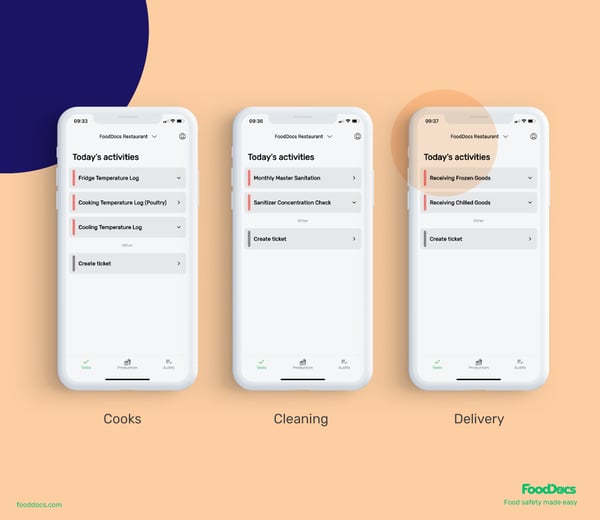
This is what the FoodDocs app looks like for different team members:
Please note!
- This feature is available only on a desktop. It means you cannot set up your monitoring tasks and assigning roles in our app solution.
- App the best solution for your team to monitor daily tasks. Download it for your Apple iOS or Android devices and on your tablet.
Follow these easy steps to assign the roles to your team members?
- Log into your FoodDocs account
- Go to the Team
- Click on the team member from the list
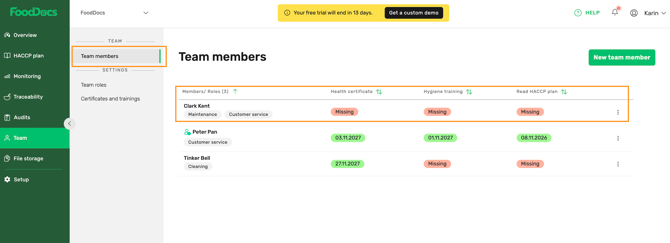
- The team member profile will come up on the right side of the screen
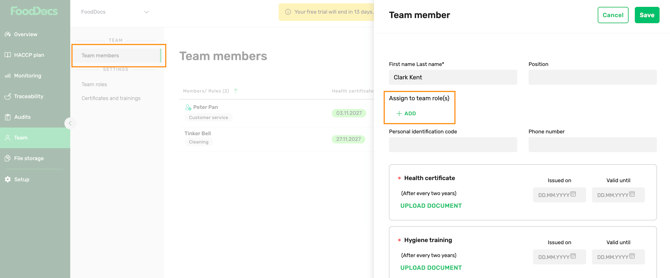
- Click +ADD under Assign to team role(s)
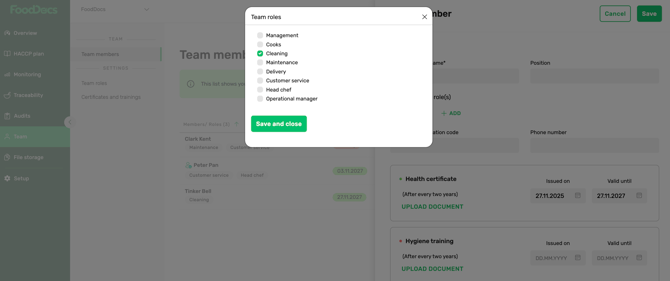
Please note! If you don't find a suitable role from the dropdown, read How to create new team roles
- Select the role(s) from the list
- Click SAVE AND CLOSE
- Click SAVE on the team member profile
Something we haven't covered?
Feel free to reach out via the Live chat button or email info@fooddocs.com