
- Sign up at https://app.fooddocs.com/
After creating your account, you'll automatically be logged in. -
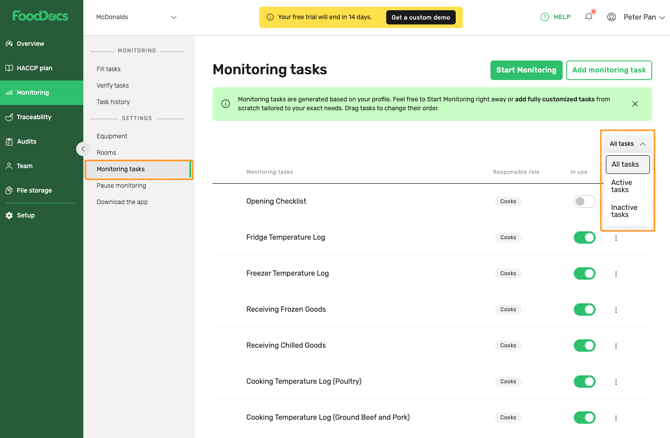
You can manage your monitoring tasks in FoodDocs — including filtering tasks by status (active, inactive, or all) and easily turning default tasks and checklists on or off. You’ll also see how to edit, copy, or delete tasks using the task menu, giving you control to customise your Food Safety Management System to fit your needs.
- Create Custom tasks (optional)
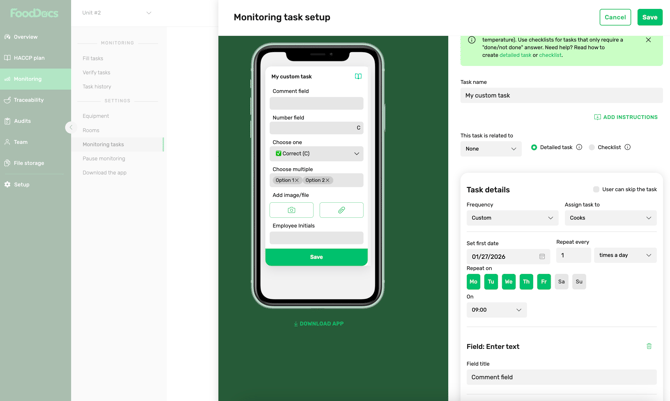
You are able to create a completely custom monitoring task in FoodDocs using the flexible task builder on desktop — including naming the task, choosing whether it’s a form or a checklist, and tailoring it to your specific monitoring needs. This lets you digitalise any type of monitoring activity that’s not covered by default templates.
- Review Equipment (optional)
- Review Rooms (optional)
- Review Team roles (optional)
- Add Recipes/Ingredients (optional)
- Invite teams to use FoodDocs
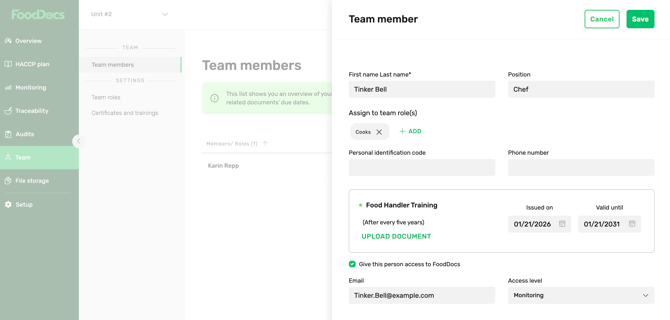
Learn how to invite new team members to your FoodDocs account, assign them appropriate roles and access levels, and ensure they only see the tasks relevant to them. You’ll also see how to add their contact details and send them an invitation so they can start using the system right away, helping your team stay organised and on schedule.
- View reports
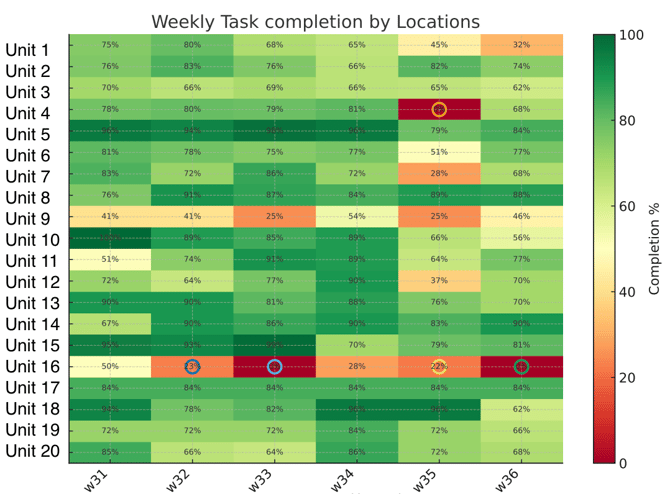
Learn how to view your monitoring records from FoodDocs on the desktop version — including how to select a monitoring check, choose a date range, and download your data as a spreadsheet (CSV or XLSX) so you can analyse or share your monitoring history easily.
Finally, be sure to check out this video. A comprehensive demo of all things in FoodDocs.