
It’s a legal requirement to keep your premises clean to keep food hygienic and free from pathogens. A cleaning checklist increases levels of accountability and can act as evidence of due diligence when you have a food safety inspection.
Your cleaning schedule is a description of what needs cleaning, when your staff need to clean it, how your staff need to clean it, and also who needs to clean it. Make sure that your cleaning schedule is specific and unambiguous.
Samples: Cleaning checklist, Opening checklist, Closing checklist, Front of House checklist, Back of House checklist.
- Log into your FoodDocs account
- Go to the Monitoring > Settings > Monitoring Tasks
- Click on Add monitoring task
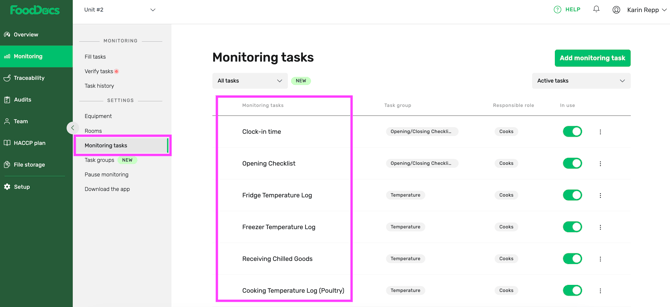
- The monitoring task creation page will come up on the right side of the screen
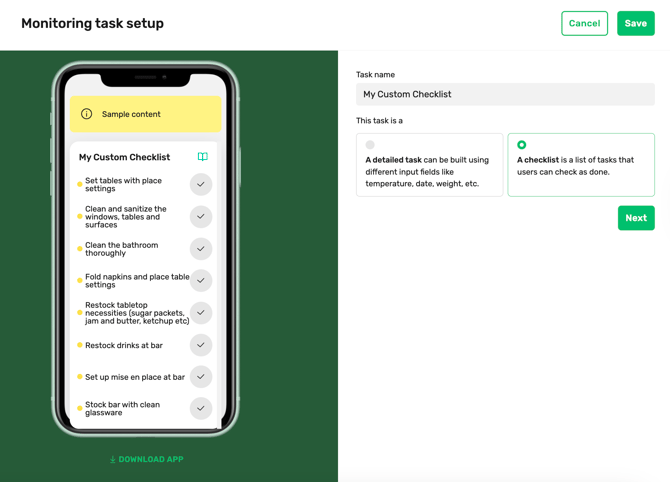
- Give a name to your cleaning checklist (for example Cleaning checklist/Kitchen opening checklist)
- Select the Checklist option (Form/Checklist)
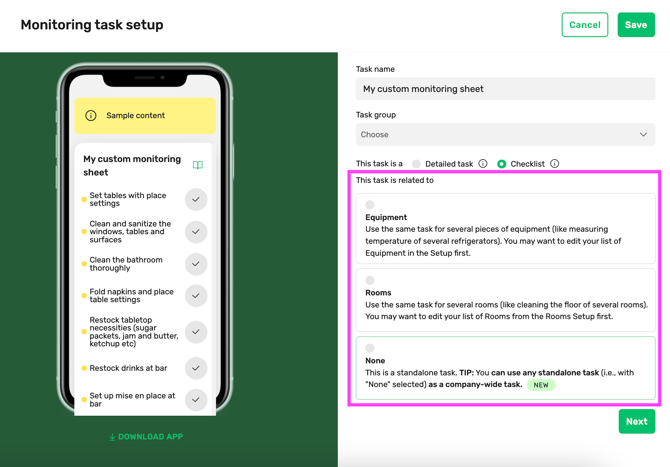
- Choose whether you want to relate this checklist to Equipment, Rooms, or None. Please note that company-wide tasks are usable only with the relation None.
Choose whether you want to apply the same roles and frequencies to all tasks or set them separately for each task.
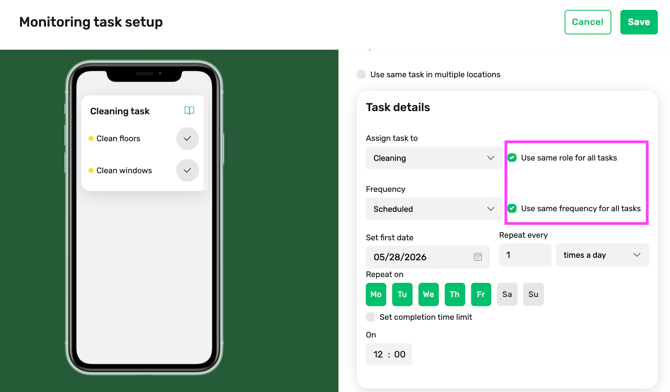
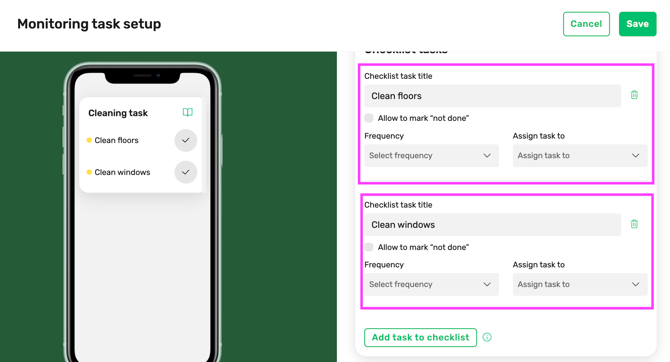
- Select task Frequency in the drop-down list (see how to set up task frequencies HERE)
- Select the team that is responsible in the drop-down list under the Assign task to (see how to assign roles to your team members HERE)
You can always come back to your checklist and apply any changes or add more tasks.
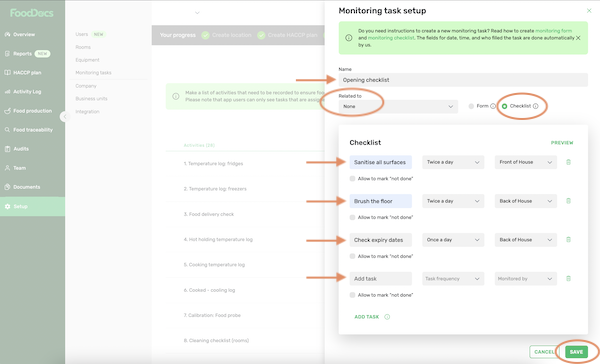
- Click on Add task to checklist to add another task (you can create as many tasks as you need)
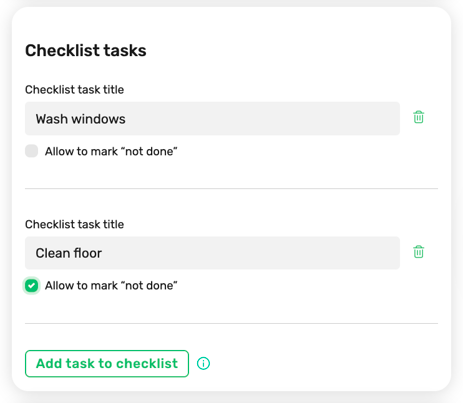
- Allowing to mark "not done" means that sometimes a task does not need to be completed. For example:
- the floor was already clean,
- or the equipment was not used.
- See PREVIEW to see how it looks on the app
- Once all tasks are added, click on SAVE
Something we haven't covered?
Feel free to reach out via Live chat button or email to support@fooddocs.com