
Please note!
- This feature is available only on a desktop. It means you cannot set up your monitoring tasks or frequencies in our app solution.
- App is the best solution for your team to monitor daily tasks. Download it for your Apple iOS or Android devices and on your tablet.
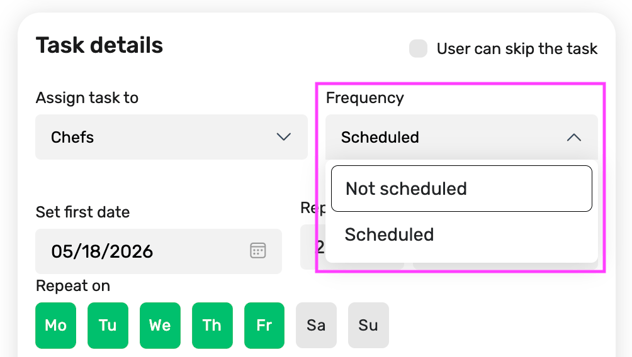
When setting up your form-type monitoring task, you need to specify the frequency:
-
-
Not scheduled > for irregular tasks that you register once in a while, e.g., receiving goods.
-
-
-
Scheduled > specific day and time, when to fill the task, e.g., opening/closing checklists, clock-in/clock-out, cleaning tasks, etc.
-
Follow these steps to set up custom frequencies.
- Log into your FoodDocs account
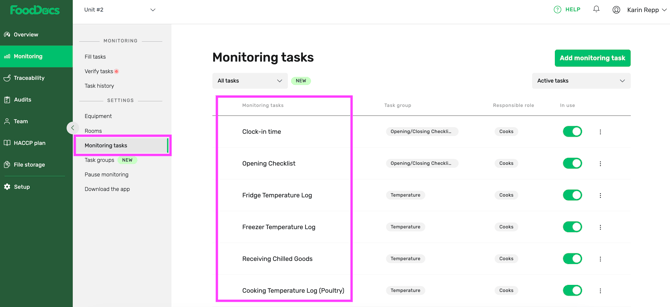
- Go to the Monitoring
- Click on Settings > Monitoring tasks
- Select a Monitoring task (checklist) from the list
- Select the Scheduled frequency from the drop-down list
- Set the First date (starting date) for the task/checklist
- Input the number into Repeat every field
- Select the frequency from the drop-down list
Below you can see the exact timings and messages for each custom frequency:
| Frequencies | Reminders | Notification message |
| Custom: Times a day | When it's due | You have a "task name" to complete in FoodDocs (one notification for each task) |
| Custom: Days | At 2 pm on the day |
1. If open >3 tasks: You have "task names" to complete in FoodDocs 2. If open <3 tasks: You have a "number of tasks" to complete in FoodDocs |
| Custom: Weeks | At 2 pm, one day before the due date |
1. If open >3 tasks: You have "task names" to complete tomorrow 2. If open <3 tasks: You have a "number of tasks" to complete tomorrow |
| Custom: Months | At 9 am, one week before the due date | You have a "task name" to complete next week |
| Custom: Years | At 9 am, one month before the due date | You have a "task name" to complete next month |
Please note! If you select a frequency of times a day, it gives you the option to set a specific day and time for the task to be repeated.
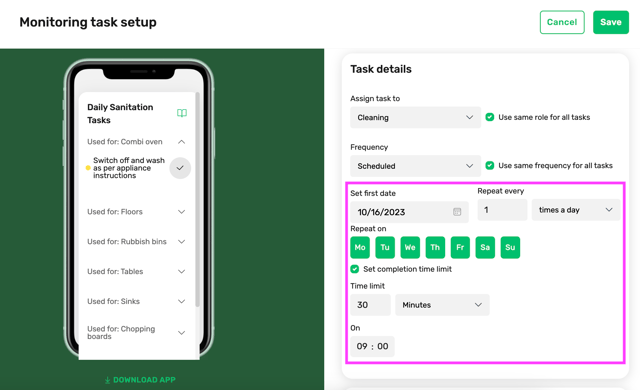
- Choose Set completion time limit checkbox if you want to set time limits for scheduled tasks
- Choose Time limit and On > the starting time of the task
- Click SAVE
Something we haven't covered?
Feel free to reach out via the Live chat button or email support@fooddocs.com