
You can collaboratively maintain your FoodDocs account with other colleagues, invite staff members and share your account with 3rd parties (health department inspectors and auditors). Depending on the role, you can manage user access.
There are two main sections where you can grant access to your FoodDocs account: Team and Users.
Please note: in the Team, you add staff members who are involved in food handling and invite them to join your FoodDocs account.
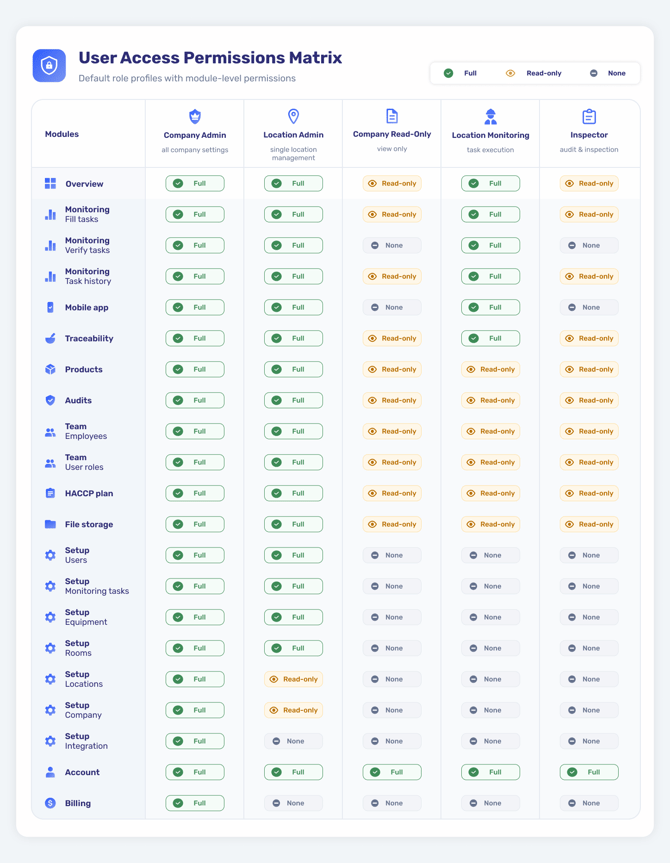
All user rights are covered in this User Access Permissions Matrix:
Adding a new Company Admin
-
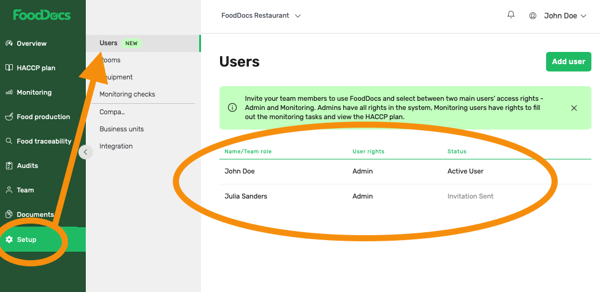
Go to Setup > Users
-
You can see users who have access to your FoodDocs account
-
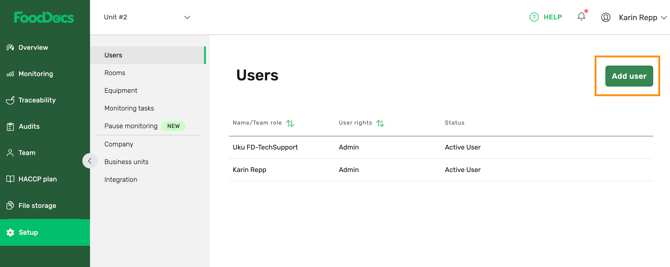
Add user to add a new admin user
-
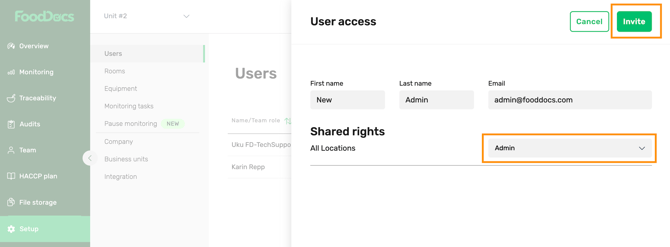
Choose All Locations > Admin
- Save with Invite
- See how to accept invitations
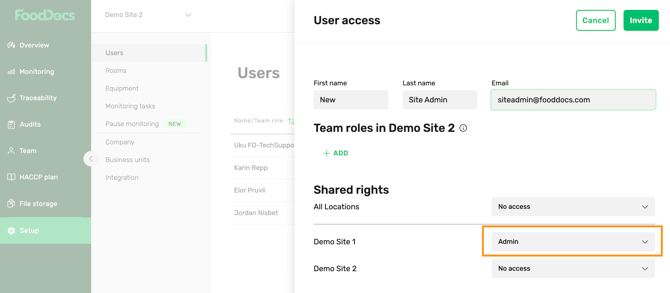
Adding a new Location Admin
-
NB! This right restricts access only to chosen locations/sites
- Assigning Team Roles also enables users to receive notifications for their assigned tasks.
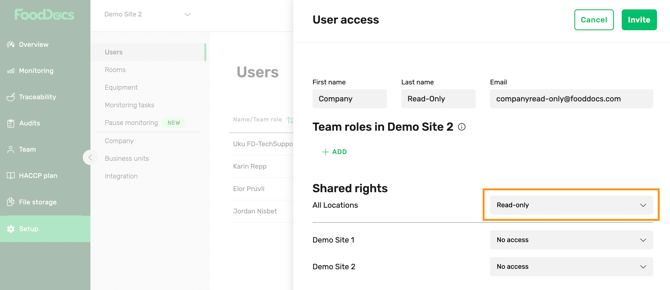
Adding a new Company Read-Only user
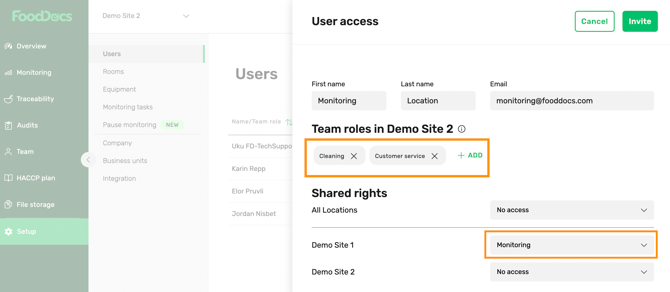
Adding a new Location Monitoring user
- NB! Make sure to assign Team Roles as well, as they determine which tasks are visible to each Monitoring user.
- Assigning Team Roles also enables users to receive notifications for their assigned tasks.
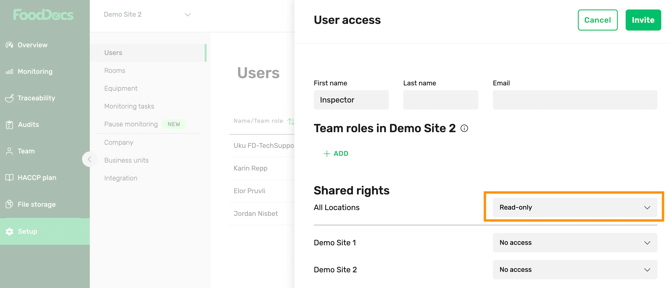
Adding a new Inspector user
Something we haven't covered?
Feel free to reach out via Live chat button or email support@fooddocs.com