
Released: 28 May 2026
What is it?
Custom-frequency tasks can now have configurable time limit windows.
Why does it matter?
This feature helps your team complete food safety tasks at the right time and keeps your records more accurate.
Key benefits:
- Improves accountability
Staff must complete checks within the correct scheduled window instead of filling them retrospectively. - Reduces false compliance
Prevents users from submitting temperature logs, cleaning checks, or monitoring tasks long after the required time. - Supports audit readiness
Auditors can clearly see whether tasks were completed on time, late, or missed entirely. - Creates more trustworthy records
Time-bound entries increase confidence that monitoring activities happened when they were supposed to. - Helps identify operational gaps
“Unscheduled” and “Not Done” entries make missed routines visible instead of silently overwritten. - Strengthens food safety culture
Encourages teams to follow real operational workflows rather than completing records in batches afterward.
How does it work?
Setup
- Create or edit a scheduled task frequency
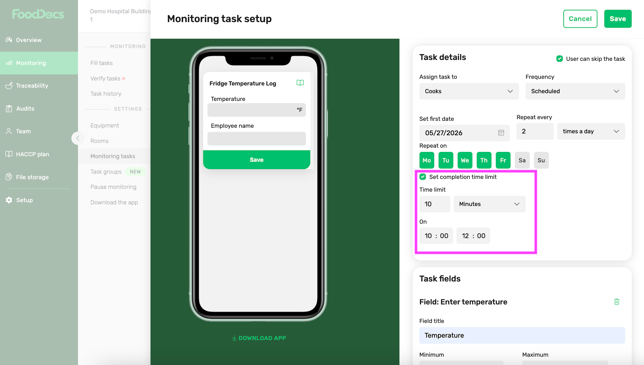
- Enable the “Set completion time limit" option
- Set the completion time limit (number + minutes/hours)
- Select the starting time On (hours and minutes available in 5-minute intervals)
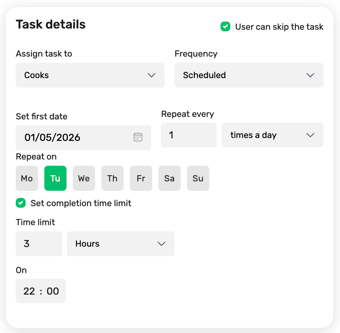
TIP: Daily tasks > If you need a task to remain fillable after midnight, configure the time limit accordingly. For example, a task scheduled at 22:00 with a 3-hour time limit can be completed between 22:00 and 01:00 the following day.
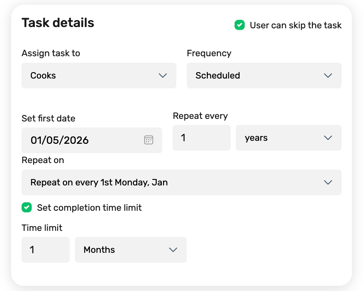
Tip: Annual tasks > In this example, the task becomes available on the first Monday of January each year and remains open for completion for one month.
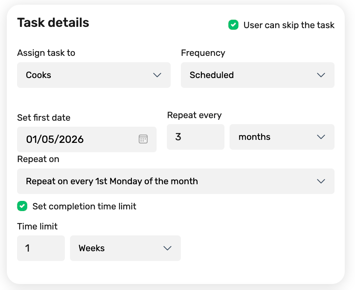
Tip: Quarterly tasks > In this example, the task becomes available on the first Monday of each quarter and remains open for completion for one week.
Fill
To fill the tasks, use either the Mobile App or the FoodDocs Web App.
Open: Monitoring > Fill tasks > Select task
There are 4 statuses:
 Done - the task was completed within the scheduled time window

Not done - the task was not completed
Missed - the scheduled time slot expired before the task was completed
 Scheduled - the task is upcoming and not yet available for completion
Unscheduled task - a task entry was added outside the scheduled time slot
Deviations - the task has deviations
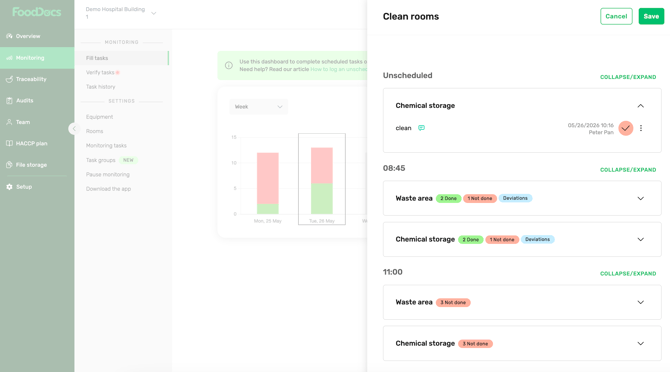
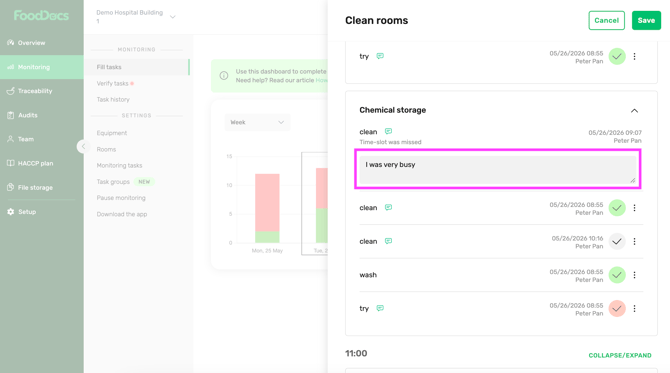
Even if a time slot is missed, users can still add comments through the three-dot menu to explain why the task was missed. This helps supervisors and auditors review incidents more quickly and efficiently.
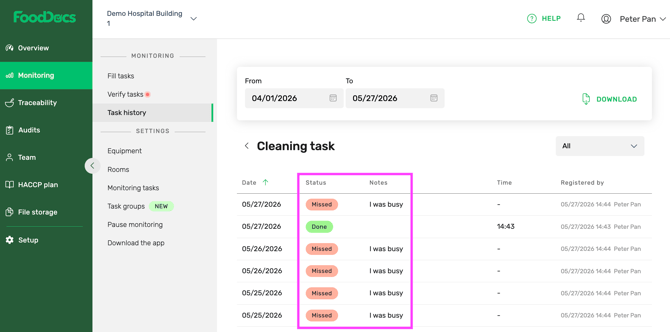
Report
Open: Monitoring > Task history
Who gets it?
Any FoodDocs user with a valid subscription or trial package.