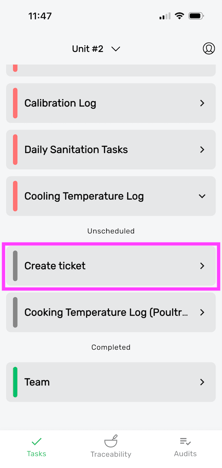
Note: Create ticket is a default task that can’t be modified. It always appears for every user in the Unscheduled section of the mobile app.
When and How to Use Tickets
Example tasks that can be handled using the Create Ticket function include reporting a broken appliance, organizing a one-time equipment repair, coordinating tasks for a special event setup, notifying staff about urgent matters, or anything else that needs someone’s attention on a one-time basis.
How Does It Work
You can create tickets/one-off tasks:
1. From Mobile app > Unscheduled section (gray zone) > Create ticket
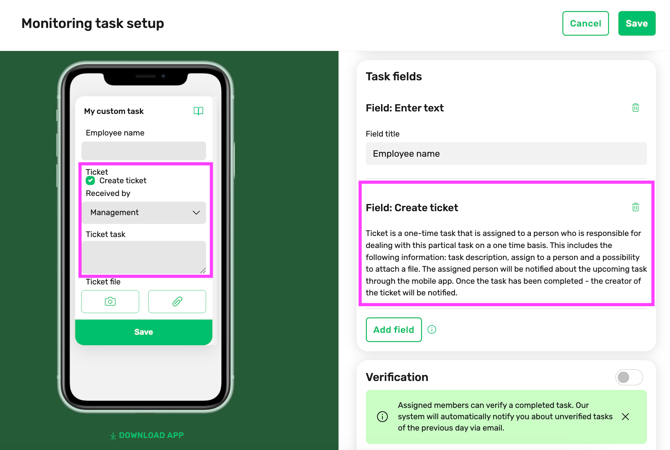
2. Add into task Field > Create ticket
Creating tickets
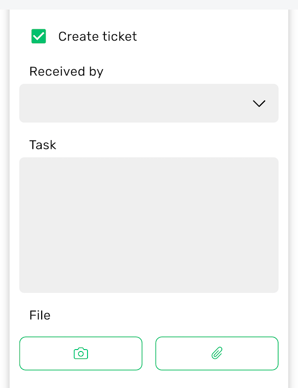
- Enable the checkbox "Create ticket"
- Choose to whom to assign the ticket from the dropdown Received by. Tickets can be assigned only to Team roles.
- Write the task content
- Add images/files
- Save
Receiving tickets
- All assigned roles will get a mobile app notification about the new ticket
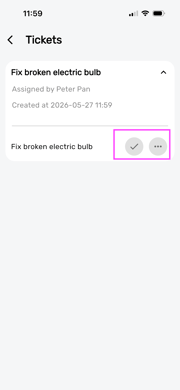
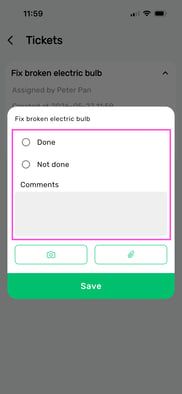
- Mark the ticket Done or fill in details under the three dots.
Reporting
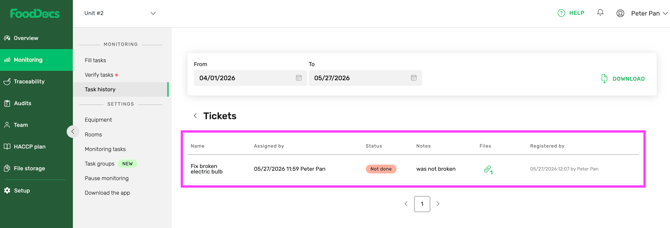
- Go to Desktop > Monitoring > Task history > Tickets
- Select a suitable time period
- See result